
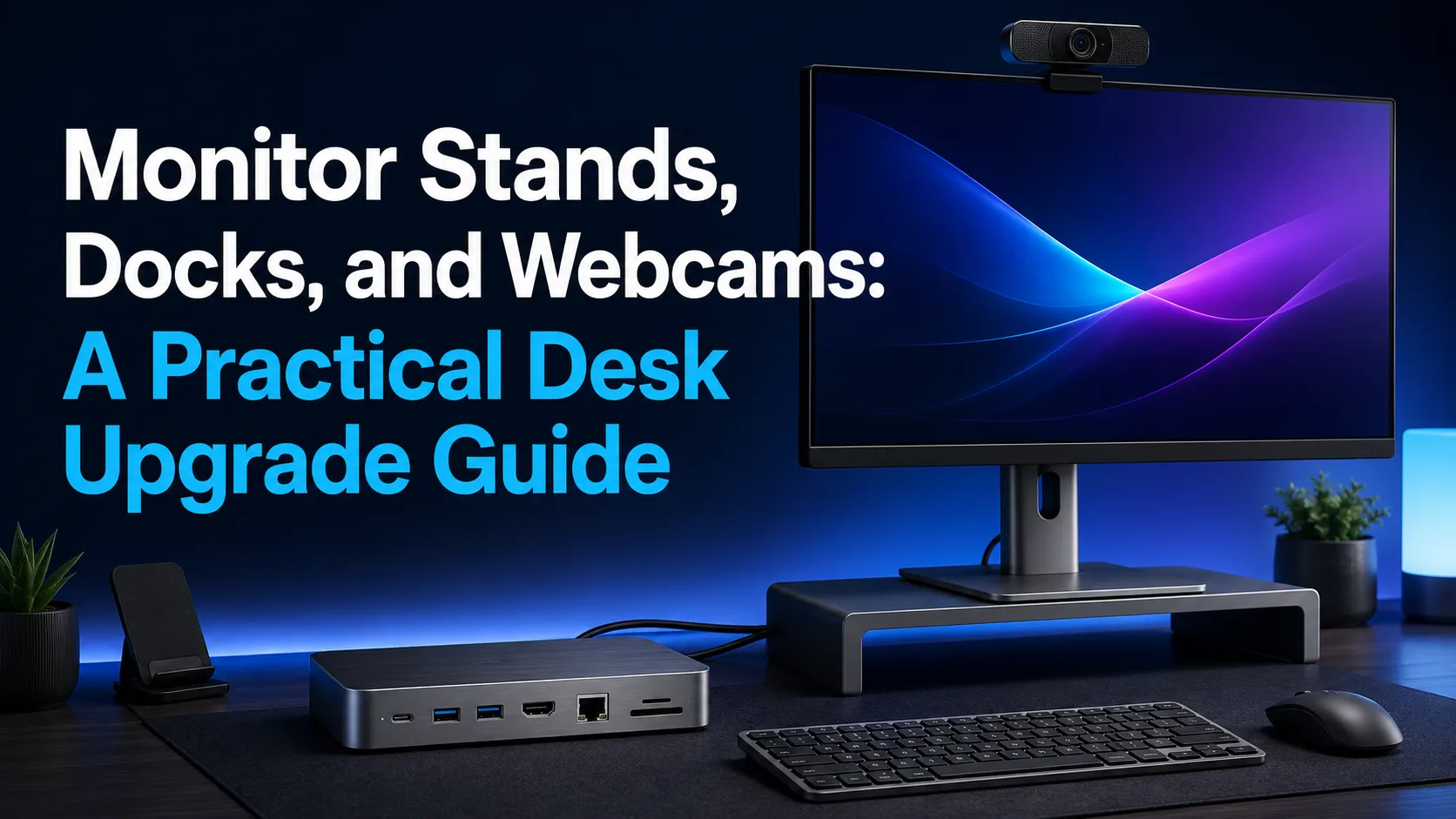
Transform your workspace into a productivity powerhouse. Learn how to select the perfect monitor stand, USB-C dock, and high-definition webcam to build an ergonomic, clutter-free desk setup.
Introduction: The Anatomy of a Modern, Productive Desk
The way we work has undergone a massive transformation in recent years, with the home office or dedicated corporate desk becoming the place where we spend the vast majority of our waking hours. A desk is no longer just a flat wooden surface to rest a laptop; it has evolved into a complex ecosystem that directly impacts our physical health, cognitive load, and daily creative output. Spending long hours looking at poorly positioned screens or struggling with tangled cables leads to physical fatigue and mental clutter over time.
The core philosophy of upgrading your workspace lies in finding the perfect balance between physical comfort (ergonomics) and technical functionality. By focusing on three foundational pillars—monitor stands, intelligent docking stations, and professional-grade webcams—you can transform any standard desk into a high-performance workstation that rivals those of top tech companies. This practical guide is designed to help you navigate the market and make smart, needs-based purchasing decisions without wasting money.
When you begin planning your desk upgrade, it is helpful to view your workspace as a dynamic, adaptable environment. It is not about buying the most expensive premium accessories, but rather about selecting tools that integrate seamlessly to streamline your daily workflow. In the following sections, we will explore how each of these three elements can tangibly elevate your daily work experience and overall productivity.
Monitor Stands and Arms: Elevating Ergonomics and Reclaiming Space
Standard monitor stands that come bundled in the box are notorious space-wasters, offering very limited height and tilt adjustments. This is where adjustable monitor arms come in as a game-changing solution. By lifting your screen completely off the desk surface, they instantly reclaim valuable real estate underneath, allowing you to tuck away your keyboard, notebooks, or other daily essentials. Furthermore, they allow you to glide your monitor in any direction to match your exact posture.
From a health perspective, positioning your monitor at eye level is absolutely crucial for preventing chronic neck and back pain. When you constantly look down at a low screen, you place immense pressure on your cervical spine, leading to rapid muscle fatigue. Monitor arms, especially those powered by gas-spring mechanisms, allow you to adjust height, tilt, and rotation (from landscape to portrait mode) with a simple touch of a finger, ensuring precise and reliable positioning.
When choosing the right monitor arm, there are two main factors to keep in mind: VESA compatibility and weight capacity. Ensure your monitor supports the VESA mounting standard (the four-hole pattern on the back of the screen, typically 75x75mm or 100x100mm). Additionally, check the maximum weight the arm can support, as heavy or ultra-wide curved monitors require heavy-duty aluminum arms to prevent wobbling while you type.
USB-C and Thunderbolt Docks: The Central Nervous System of Your Setup
As modern laptop manufacturers continue to reduce built-in ports in favor of slim profiles, utilizing a robust docking station has become an absolute necessity for professionals. A docking station allows you to connect all your peripherals—external monitors, mice, keyboards, Ethernet cables, and external storage—to your laptop via a single cable. This means you can transition from mobile to desktop mode instantly without plugging and unplugging a dozen cables every day.
When shopping for a dock, it is vital to understand the difference between standard USB-C docks and Thunderbolt docks (such as Thunderbolt 3 or 4). Thunderbolt docks offer massive bandwidth of up to 40Gbps, enabling support for multiple 4K monitors at high refresh rates alongside high-speed data transfers. Standard USB-C docks, on the other hand, are highly capable and cost-effective for users who only need to run one or two standard monitors alongside basic USB accessories.
Another critical feature to look for is Power Delivery (PD). This technology allows the docking station to charge your laptop over the very same cable used for data and video transmission. Make sure to choose a dock that provides sufficient charging wattage for your specific machine. For instance, most 13-inch laptops require around 60W of power, while larger 15-inch or 16-inch performance laptops need 85W to 100W to operate at full capacity without draining the battery under heavy workloads.
Webcams and Lighting: Presenting Your Best Self in Virtual Meetings
Virtual meetings on platforms like Zoom and Microsoft Teams have become a permanent fixture of our professional lives. Unfortunately, most built-in laptop webcams deliver subpar video quality because the ultra-thin bezels of modern screens leave very little room for a decent image sensor. Investing in a dedicated external webcam provides an immediate, massive leap in video quality, significantly enhancing your professional presence during high-stakes presentations and client calls.
When selecting a webcam, do not be misled by marketing buzzwords like 4K resolution alone. Often, a high-quality 1080p camera operating at 60 frames per second with a large image sensor and smart color science will look vastly superior to a cheap 4K camera with a tiny sensor that produces noisy, grainy images in low light. Look for webcams that offer fast autofocus, automatic light correction, and an adjustable field of view to frame your workspace properly.
Beyond the camera itself, lighting plays the most significant role in how you look on screen. Even the most expensive professional webcam will struggle in a dark room or when there is a bright light source directly behind you (such as an open window). To achieve a polished, professional look, try to position a soft light source directly in front of you or at a 45-degree angle, and use your webcam software to adjust the white balance so your skin tones look natural.
Putting It All Together: Cable Management and Practical Layouts
Once you have selected your ideal monitor arm, a powerful docking station, and a high-definition webcam, you face the final and most visually impactful step: cable management. A chaotic web of tangled wires under or on top of your desk not only ruins the aesthetics but also acts as a dust magnet and makes swapping devices a nightmare. Fortunately, resolving this issue requires only a few simple, budget-friendly tools.
Start by mounting an under-desk cable management tray to hold your power strips and bulky power bricks completely out of sight. Next, use reusable hook-and-loop (Velcro) cable ties to bundle the cables running from your monitor and dock into neat, single runs. This approach keeps your setup clean while maintaining the flexibility to easily adjust or swap out components in the future without having to cut through plastic zip ties.
Ultimately, the goal of upgrading your desk is to simplify your daily routine and minimize mental friction. By organizing your cables and lifting devices off the desk surface, you create a clean, visually calming environment that fosters focus and deep work. Spend a little time planning the path of each cable and the placement of each device, and you will quickly see how an organized space translates into improved productivity and daily comfort.
Comparison table
Accessory Type | Key Benefit | Target Audience | Installation Difficulty |
|---|---|---|---|
Monitor Arms | Improves ergonomics, reclaims desk space, offers fluid movement | Designers, programmers, and anyone working long hours on screens | Medium (requires basic clamping and screw adjustment) |
Docking Stations | Single-cable connectivity for charging, displays, and peripherals | Laptop users who frequently transition between mobile and desk work | Very Easy (plug-and-play setup) |
External Webcams | Superior video quality, better low-light performance, flexible angles | Content creators, remote workers, and managers in frequent meetings | Very Easy (monitor mount and USB plug-in) |
Frequently asked questions
Do I need a Thunderbolt dock, or is standard USB-C enough?
If you only use a single 1080p or 2K external monitor along with basic USB peripherals, a standard USB-C dock is perfectly adequate and more budget-friendly. However, if you need to drive dual 4K monitors or transfer massive files quickly, a Thunderbolt dock is highly recommended for its superior bandwidth.
Are gas-spring monitor arms safe for glass desks?
Generally, it is not recommended to mount heavy-duty monitor arms using C-clamps directly onto glass desk surfaces, as the concentrated pressure can shatter the glass. If you have a glass desk, look for a freestanding monitor stand or use reinforcement plates to distribute the clamping force evenly.
How can I improve the audio quality of my webcam setup?
While most webcams include built-in microphones, they tend to pick up room echo and background noise. For professional-sounding audio, it is best to use a dedicated USB desktop microphone, a clip-on lapel mic, or a high-quality wireless headset with a noise-canceling microphone.
Comments
Be the first to comment.