
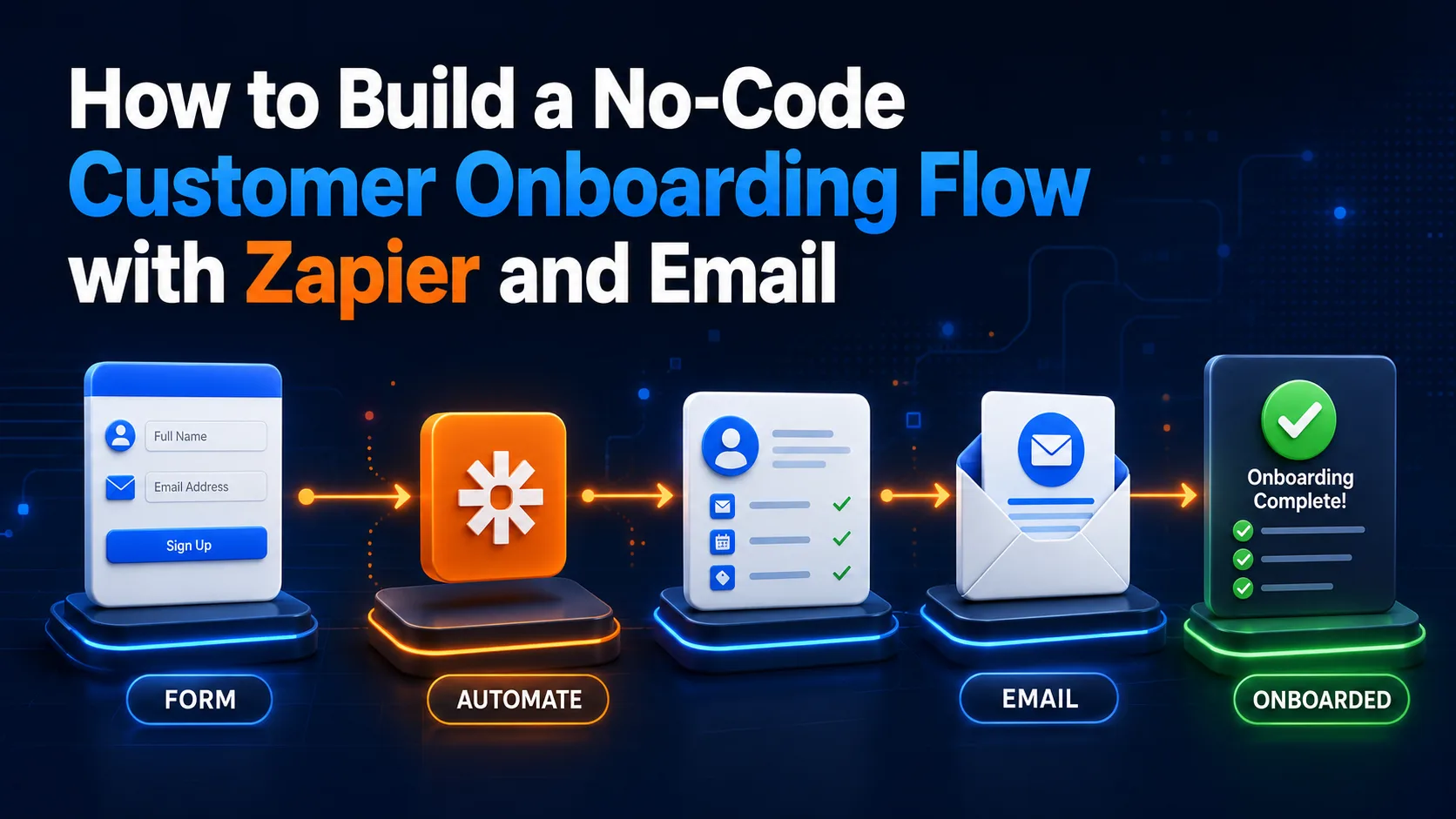
Learn how to automate your customer onboarding process using Zapier and email. This step-by-step guide helps you welcome new users, deliver value, and increase retention without writing a single line of code.
Introduction: Why Automated Onboarding Matters
First impressions are everything in today's digital landscape. When a new user signs up for your service or purchases your product, the first few hours dictate whether they will become loyal customers or churn immediately. Customer onboarding is the bridge that connects initial curiosity with the actual value your product delivers.
By automating this process, you ensure that every single customer receives a warm welcome and clear guidance at the exact right moment. This does not require hiring an expensive development team or writing complex backend code. Thanks to modern no-code automation tools, anyone can set up a professional onboarding system in just a few hours.
Step 1: Mapping Your Ideal Onboarding Journey
Before opening any technical tools, it is crucial to map out the exact path you want your customers to take. Start by identifying your trigger event, which is the action that starts the journey. This could be a successful payment, a form submission, or a new user registration on your platform.
Next, determine the key milestones your user needs to reach to experience their 'Aha! Moment'—the point where they truly understand the value of your product. A typical journey might include an immediate welcome email, a feature spotlight email two days later, and a feedback request after one week.
Step 2: Choosing Your Trigger and Email Tools
To build this workflow, you will need three core components: a data source (like a signup form), an automation hub (Zapier), and an email service provider (such as Mailchimp, ConvertKit, or ActiveCampaign). Ensure you have accounts set up on these platforms before proceeding.
For this guide, we will use a form submission as our trigger. Tools like Typeform or Google Forms are excellent for gathering initial user information, such as their name, email address, and primary goal, which allows you to personalize their onboarding experience later.
Step 3: Connecting the Pieces with Zapier
This is where the magic happens. In Zapier, create a new 'Zap' and select your form tool as the Trigger App. Choose the event 'New Entry' or 'New Form Submission' and run a test to pull in recent sample data. This sample data will make it easy to map fields in the next steps.
Next, add an Action step and select your email marketing platform. Choose the action 'Add/Update Subscriber'. Map the email and name fields from your form trigger to the corresponding fields in your email tool, ensuring that the new user is automatically tagged with 'Onboarding Series'.
Step 4: Designing and Launching Your Email Sequence
Once the subscriber is added to your email tool with the correct tag, your automated email sequence should trigger immediately. Your first email should focus on delivering immediate value, setting expectations, and offering a single, clear next step. Avoid overwhelming them with too much information at once.
Space out your subsequent emails by 24 to 48 hours. Use these follow-ups to highlight specific features, share case studies, or offer helpful tips. Always include a clear call-to-action (CTA) and make it incredibly easy for them to reach out to your support team if they get stuck.
Comparison table
Trigger Source | Best Use Case | Setup Complexity | Recommended Tool |
|---|---|---|---|
Payment Gateway | Paid SaaS or premium memberships | Medium | Stripe |
Form Submission | Free trials, newsletters, or lead magnets | Easy | Typeform |
CRM Update | High-touch sales or enterprise onboarding | Medium-High | HubSpot |
Frequently asked questions
Can I build this onboarding flow using a free Zapier account?
Yes, you can build a basic onboarding flow with a free Zapier account if it only requires a single trigger and a single action. For multi-step workflows or advanced filtering, you will need a premium plan.
How do I prevent sending onboarding emails to users who unsubscribe?
Modern email marketing platforms handle unsubscribes automatically. If a user clicks the unsubscribe link in any email, the platform will immediately stop sending them the remaining emails in that automated sequence.
Can I personalize the onboarding emails based on user answers?
Absolutely. You can use Zapier's 'Paths' feature or use tags within your email marketing tool to segment users and send them customized email sequences based on their specific goals or industry.
Comments
Be the first to comment.